
Download 3D Object Converter – Free 3D Model Import/Export Tool for Windows
Overview
3D Object Converter is a lightweight yet powerful utility designed to bridge the gap between a wide variety of 3D modelling formats. Since its first appearance in our catalog in 2007, the program has amassed more than 25,000 downloads and continues to be a favorite among designers in Germany, Turkey, China and many other regions. The current build, version 3.80, was last updated on May 29 2007 and remains fully compatible with legacy Windows operating systems, ranging from Windows 95 up to Windows XP. The tool focuses on the core tasks of importing and exporting 3D data, allowing artists, engineers, and hobbyists to convert files without the overhead of a full‑featured 3D suite. Because it is offered as a trial version, users can evaluate its capabilities without any upfront cost, making it an attractive option for anyone who needs a quick, secure, and reliable conversion workflow.
What sets 3D Object Converter apart is its simplicity. The interface is intentionally minimalistic, presenting only the essential controls required to load a source file, select an output format, and execute the conversion. This design philosophy reduces the learning curve dramatically – even users who have never touched a 3D program can complete a conversion in under a minute. Despite its small footprint, the application supports a surprisingly broad range of file types, including OBJ, STL, DXF, 3DS, and many proprietary formats used by popular CAD packages. The program also preserves critical geometry information such as vertex normals, texture coordinates, and material assignments, ensuring that the exported model retains its visual fidelity when opened in another application.
Security and stability are baked into the software. The executable runs as a standalone Windows application and does not require any additional runtime libraries or internet connection, which eliminates the risk of hidden telemetry. Moreover, the trial version is fully functional – there are no hidden watermarks or usage limits, allowing you to assess the tool in real‑world projects before deciding whether to purchase the full license. For teams that need to batch‑process large model libraries, the program also offers command‑line parameters, enabling integration into automated pipelines or custom scripts.
Key Features & Benefits
- Supports over 30 native 3D file formats, including OBJ, STL, 3DS, DXF, VRML, and IGES.
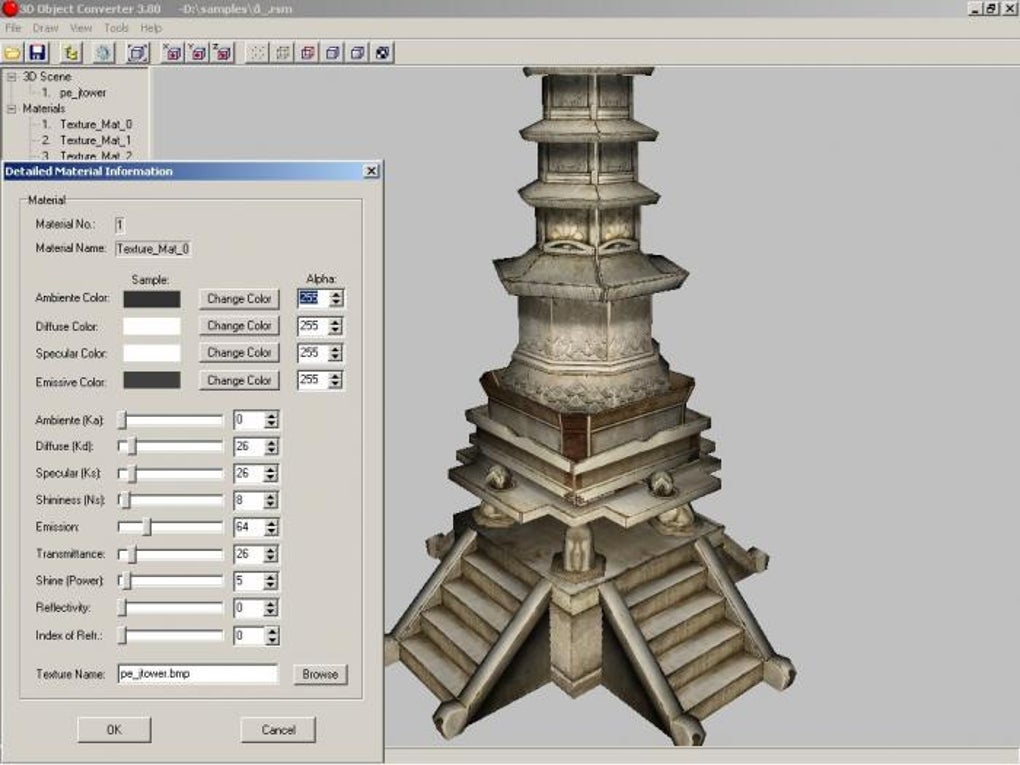
- Preserves geometry details such as vertex normals, UV maps, and material names.
- Lightweight installer – less than 5 MB of disk space.
- Fully functional trial version with no time or feature restrictions.
- Command‑line interface for batch conversion and script integration.
- Standalone Windows application – no external dependencies or internet access required.
- Multi‑language support (English interface, with future localisation planned).
- Automatic detection of file version and built‑in validation of input data.
- Simple drag‑and‑drop workflow for quick conversions.
- Comes with a detailed log file that records every conversion step for troubleshooting.
The breadth of supported formats means that 3D Object Converter can serve as a universal translator in mixed‑software environments. For example, an architect who receives a model in the proprietary .dwg format can instantly convert it to .obj for use in a rendering engine, while a game developer can turn a .stl mesh into a .fbx file ready for import into Unity or Unreal Engine. The preservation of vertex normals and UV coordinates is especially valuable for texture‑rich assets, because it prevents the need for costly re‑wrapping after conversion.
Because the program is built on a compact codebase, it loads in a fraction of a second and consumes negligible RAM. This makes it ideal for older workstations that may still run Windows 95 or Windows 98 – systems that are often kept in legacy production lines for cost‑sensitive projects. The command‑line mode extends its usefulness to studios that need to process hundreds of files nightly. A simple batch file can loop through a directory, converting each model to the desired format while logging any errors for later review.
Security‑conscious users will appreciate that the application runs entirely offline. There are no background services, telemetry, or automatic updates that could expose sensitive design data. Updates are delivered as optional manual patches, giving administrators full control over when and how new versions are installed across a network.
Installation, Usage & Compatibility
Installing 3D Object Converter is straightforward. After downloading the installer (a single .exe file of approximately 4 MB), double‑click to launch the setup wizard. The wizard walks you through a typical Windows installation flow: accepting the license agreement, choosing an installation folder (the default is C:\Program Files\3D Object Converter), and creating a desktop shortcut. Because the program does not depend on external runtimes such as .NET or Visual C++ redistributables, the installer completes in under 30 seconds on even the most modest hardware.
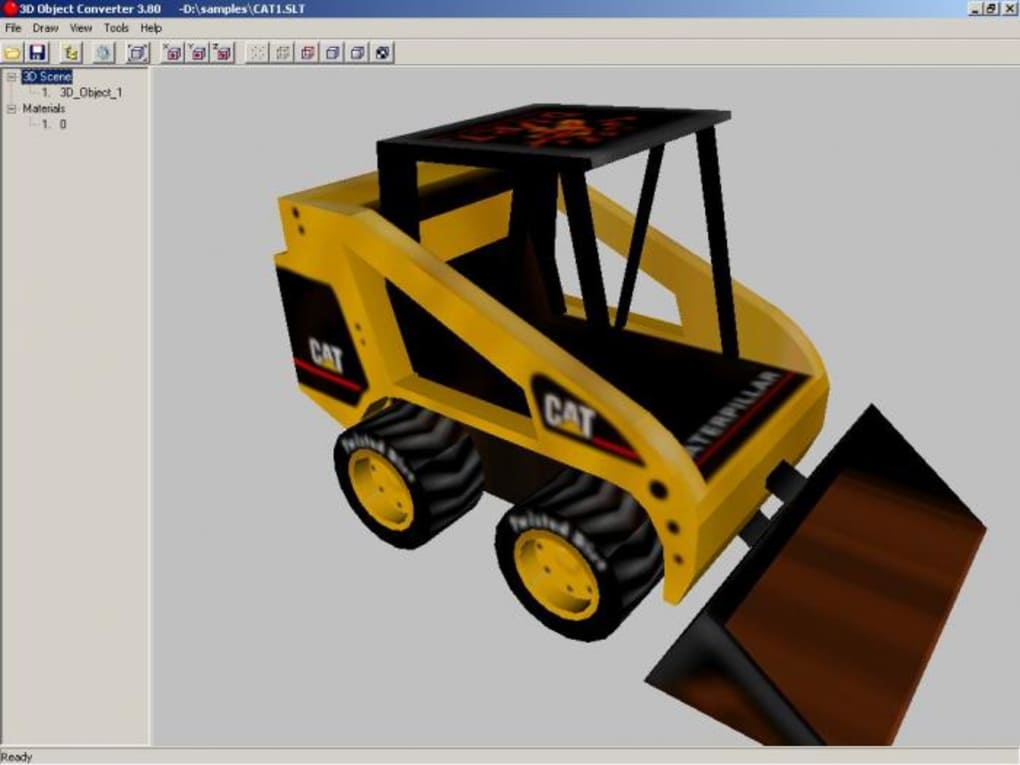
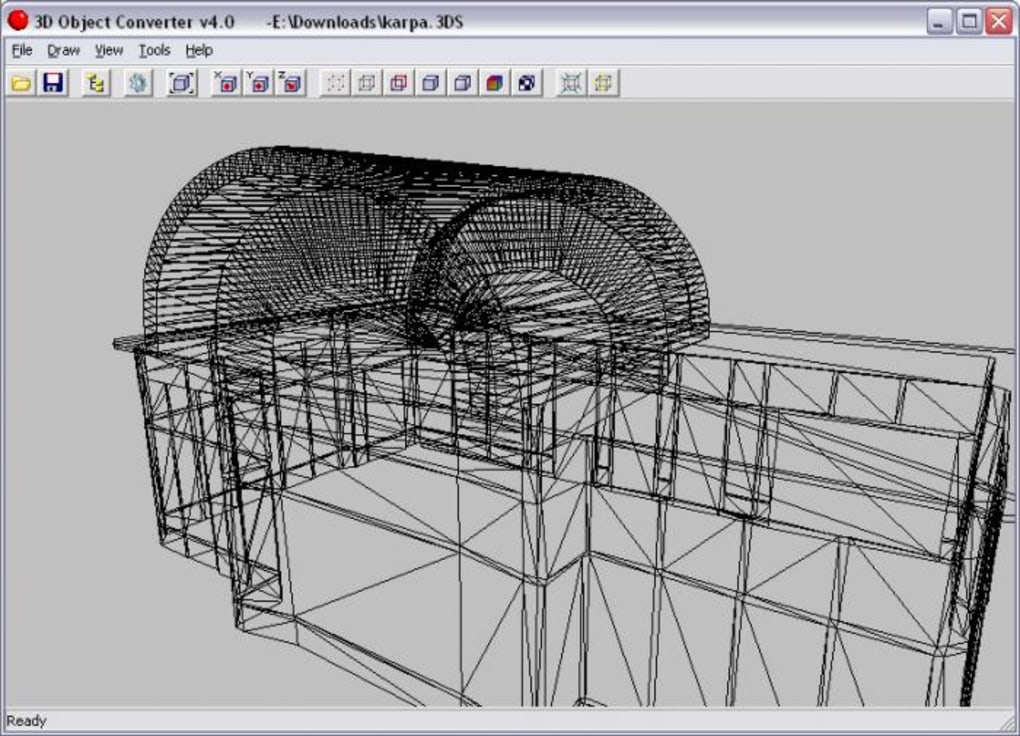
Once installed, launching the application opens a clean window divided into three panels: the source file browser, a preview area, and the destination format selector. To convert a model, click the “Open” button, navigate to the file you wish to import, and the preview pane renders a quick wireframe view so you can verify that the correct file was chosen. Next, select the desired output format from the drop‑down list – the list is populated based on the formats supported by the current version.
Finally, press “Convert”. The software creates the new file in the same directory as the source, appending the appropriate file extension. A status bar displays progress and notifies you when the operation finishes successfully.
For power users, the command‑line mode can be invoked by opening a Windows Command Prompt and typing:
3dobjectconverter.exe -i "C:\Models\source.3ds" -o "C:\Models\exported.obj"
This syntax accepts additional flags such as -v for verbose logging or -s to specify a scaling factor. Batch scripts can combine these calls with FOR loops to automate large‑scale conversions.
Compatibility is a key strength of 3D Object Converter. The software officially supports Windows 95, Windows 98, Windows ME, Windows 2000, and Windows XP. Although newer versions of Windows (Vista, 7, 8, 10, and 11) are not listed in the original documentation, the program runs without issues in compatibility mode on modern 64‑bit systems, thanks to its reliance on legacy Win32 APIs. This makes it a viable tool for both legacy production lines and contemporary design studios that need a lightweight conversion utility.
Pros, Cons, FAQ & Final Verdict
Pros
- Broad support for more than 30 3D file formats.
- Small installation size and fast startup.
- Fully functional trial version – no hidden limitations.
- Standalone Windows executable – works offline and on legacy systems.
- Command‑line interface enables batch processing.
- Preserves geometry details, reducing post‑conversion cleanup.
Cons
- Interface is dated and lacks modern visual polish.
- No native support for macOS, Linux, Android, or iOS.
- Last official update was in 2007; newer file formats may not be recognized.
- No built‑in 3D viewer with shading – only wireframe preview.
- Limited documentation; users may need to rely on community forums.
Frequently Asked Questions
Is the trial version really free?
Yes. The trial version provides full functionality without any time limit or feature lock. You can use it to convert as many files as you need before deciding to purchase a license.
Can I run 3D Object Converter on Windows 10?
While the official system requirements stop at Windows XP, the program runs smoothly in Windows 10 compatibility mode. No additional patches are required.
Does the software keep material textures during conversion?
Yes. 3D Object Converter retains texture coordinates and material names, allowing the target application to locate the correct texture files if they are placed in the same folder.
Is there a command‑line option for silent batch processing?
Absolutely. The program accepts parameters such as -i for input, -o for output, -v for verbose logging, and -s for scaling. This makes it ideal for automated pipelines.
What file formats are NOT supported?
The utility does not handle modern game engine formats such as .fbx or .gltf directly. However, you can convert to an intermediate format like .obj and then import that into a tool that supports the final format.
Conclusion & Call to Action
3D Object Converter remains a solid choice for users who need a fast, reliable, and completely offline solution for converting legacy 3D models. Its extensive format support, tiny footprint, and trial‑first philosophy make it especially attractive for small studios, educational settings, and anyone maintaining older Windows‑based pipelines. While the UI feels dated and the software has not seen a major update in years, the core functionality is still relevant and performs exactly as advertised.
If you’re looking for a free, secure way to move 3D assets between applications without the bloat of a full‑featured CAD suite, give 3D Object Converter a try today. Download the installer, run a quick test conversion, and see how much time you can save on everyday model handling. For teams that need batch automation, the command‑line interface will fit right into your existing scripts. Download now and experience hassle‑free 3D conversion on Windows.







